

To use many of the computer-controlled tools in the Maker Lab, you’ll need to create an Adobe Illustrator file containing vector outlines telling the tool where to make the cuts you want. Vector graphics contain data that define points, lines and curves based on mathematical formulas.
You’ll need to use Adobe Illustrator to create vector outline files for the following Maker Lab tools:

CNC router
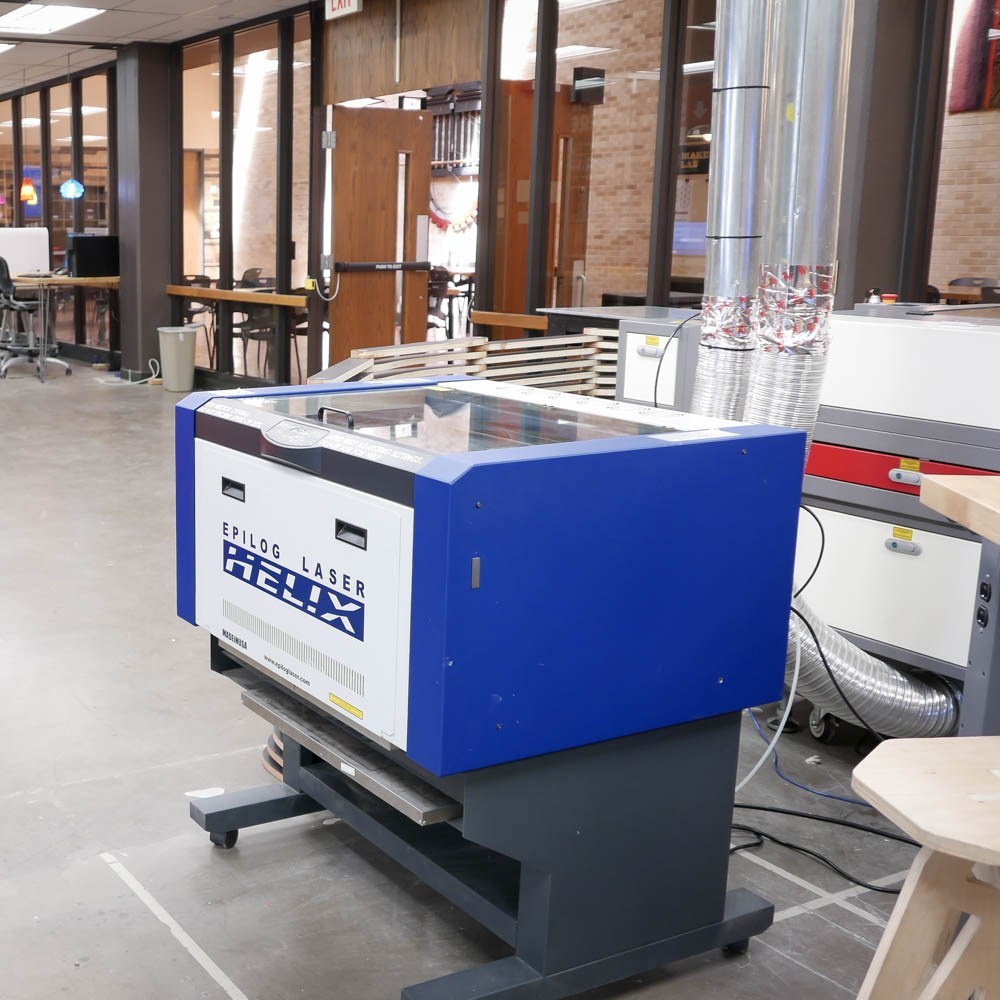
Epilog Laser

Boss Laser

Vinyl Cutter

Silhouette Cameo
Vector files can be copy-pasted and scaled up or down without degrading quality. This makes it possible to reuse the same vector on multiple tools and many different applications. To get your file to the computer connected to one of the Maker Lab’s tools, save it to a flash drive or email a copy of it to acumakerlab@gmail.com.


1. Type Tool + Create Outlines
Use the TYPE TOOL to create a text area on the art board and type in the text you want to use. You can adjust the font face and font size from the top menu. Once your text is set, right rick on it and choose CREATE OUTLINES. This will convert the letters you typed to vector outlines.

2. Shape Tools + Pathfinder Window
Use the SHAPES TOOL on the left side menu to create a variety of simple shapes. These shapes can be overlapped, stacked and combined to make compound paths. With two or more simple shapes selected, go to WINDOW > PATHFINDER. Objects can be combined (UNITE) or subtracted (MINUS FRONT) to create new shapes.

3. Pen Tool + Direct Selection Tool
Use the PEN TOOL to click and place anchor points along a path. Connect the dots to create a complete vector outline. To adjust the placement of each anchor point, use the DIRECT SELECTION TOOL (white arrow) to select and move each point. Points can be converted from angled corners to smooth curves using the context tools in the top menu.

4. Image Trace Window
Use the Image Trace Window to convert imported images to vector outlines. Go to FILE > PLACE to import images into Illustrator. Once imported, go to WINDOW > IMAGE TRACE to begin adjusting the trace settings. Clicking the EXPAND button on the top menu will generate a group of vector paths from the traced image.
